Here's an example of configuring an address with the "Outlook Express" email client.
Let's suppose the email address to be configured is [email protected] :
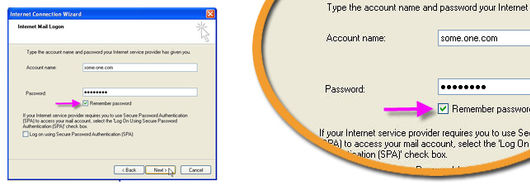
Username: some.one.com Password: ****** (the one you requested) (see General configurations)
Guide on how to create a new account
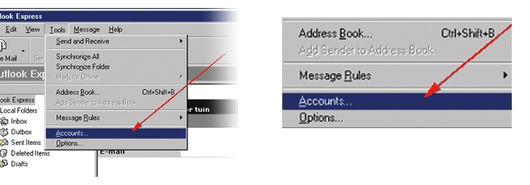
Open "Outlook Express", go to the "Tools" entry of the menu at the top and select "Account...".
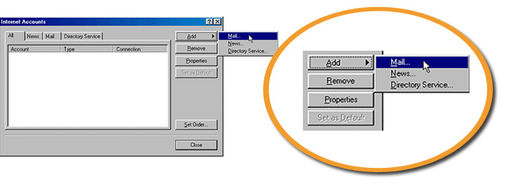
Once you've clicked on "Account..." a new window will open up, and you'll have to select the "E-mail" tab and click on the "Add" entry of the right menu. Select "E-mail..." among the possible choices.
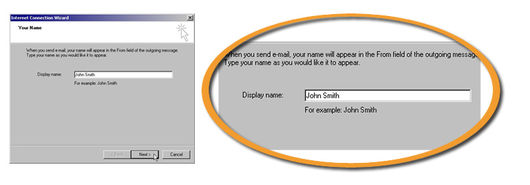
In the first screen enter first and last name, the name of the company or the nickname you desire. This will be the data that will be shown in the messages you send. After you've entered this data, click on the "next" button in the lower right.
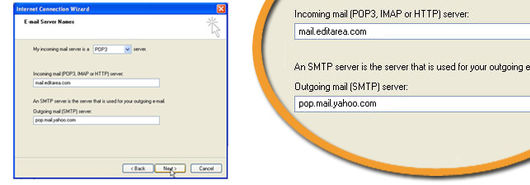
Enter the incoming (POP3) and ougoing (SMTP) email servers. The incoming mail serve is always "mail.editarea.com". The outgoing mail server instead depends on your provider. Once you've entered the servers click on the "Next" button.
This is the last requested information. You'll have to enter the username and the password you've previously chosen. Once entered, click on the "next" button and in the next screen click on the "End" button to save the data and create the new email account.